Certificate Monitor
How to use
SoftPerfect Certificate Monitor is a free desktop application that keeps an eye on the TLS/SSL certificates behind the hosts you care about, so an expired or misconfigured certificate never takes you by surprise. It periodically connects to each host, retrieves the certificate and its full chain, and sums up the health of each one with a letter grade from A to F. It works with ordinary domain names and with bare IP addresses, including the modern short-lived certificates now issued for IP addresses. Everything runs on your own computer – your host list and certificate details never leave your machine.
Getting started
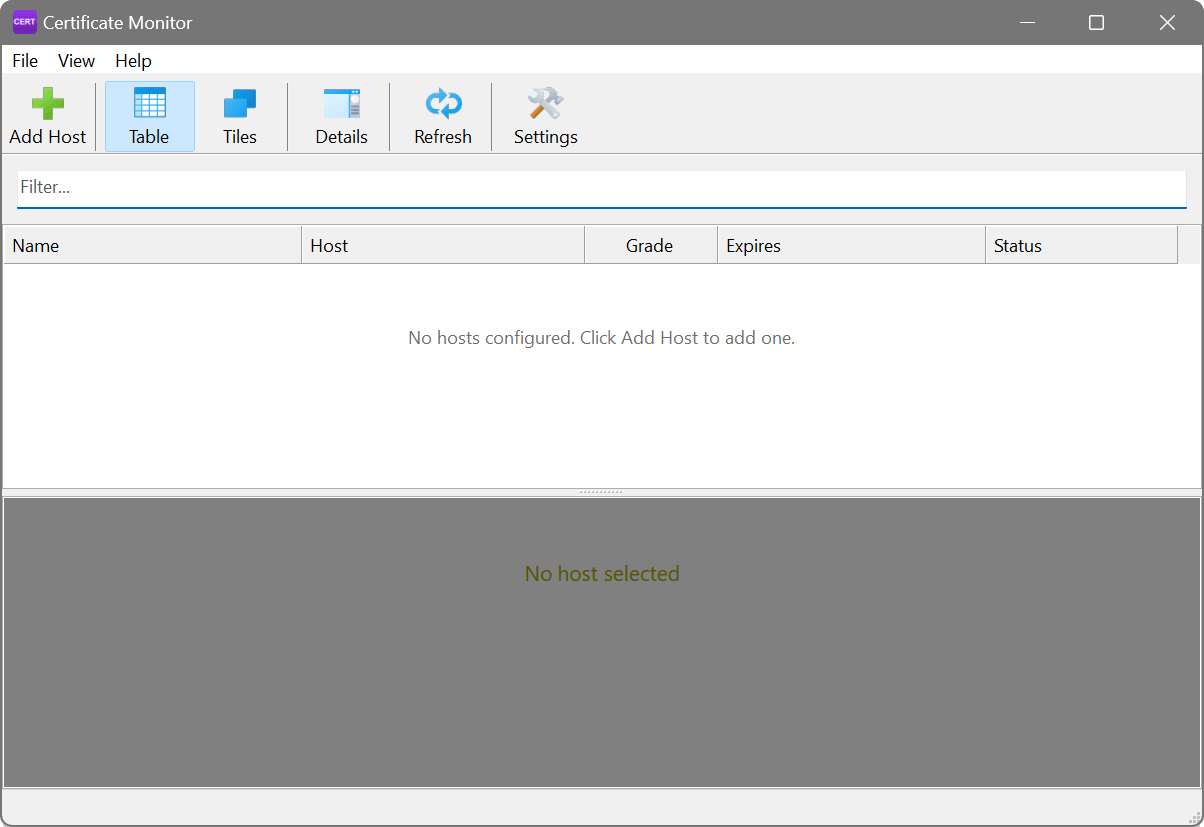
When you first launch the application, the main window is empty. To begin monitoring, click Add Host on the toolbar.
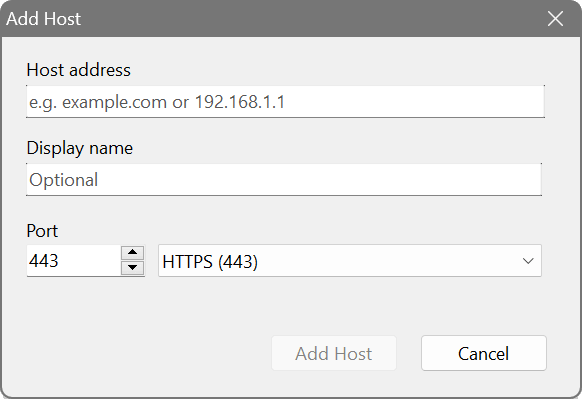
In the Add Host dialogue, enter the host address, an optional display name, and the port number. The address can be a domain name (such as example.com) or an IP address (such as 203.0.113.10). Port 443 (HTTPS) is used by default, but you can pick another common TLS port from the drop-down list or type a custom one – for example the port your mail or database server listens on.
As soon as you add a host, Certificate Monitor connects to it, retrieves the certificate and grades it right away. Add as many hosts as you need – they are all rechecked automatically at the interval you choose (every 24 hours by default), which is plenty for certificates that live for weeks or months.
Main window
The main window is divided into two areas: the host list at the top and the details panel at the bottom. The host list can be shown as a table or as tiles, and the details panel shows certificate information for the selected host.
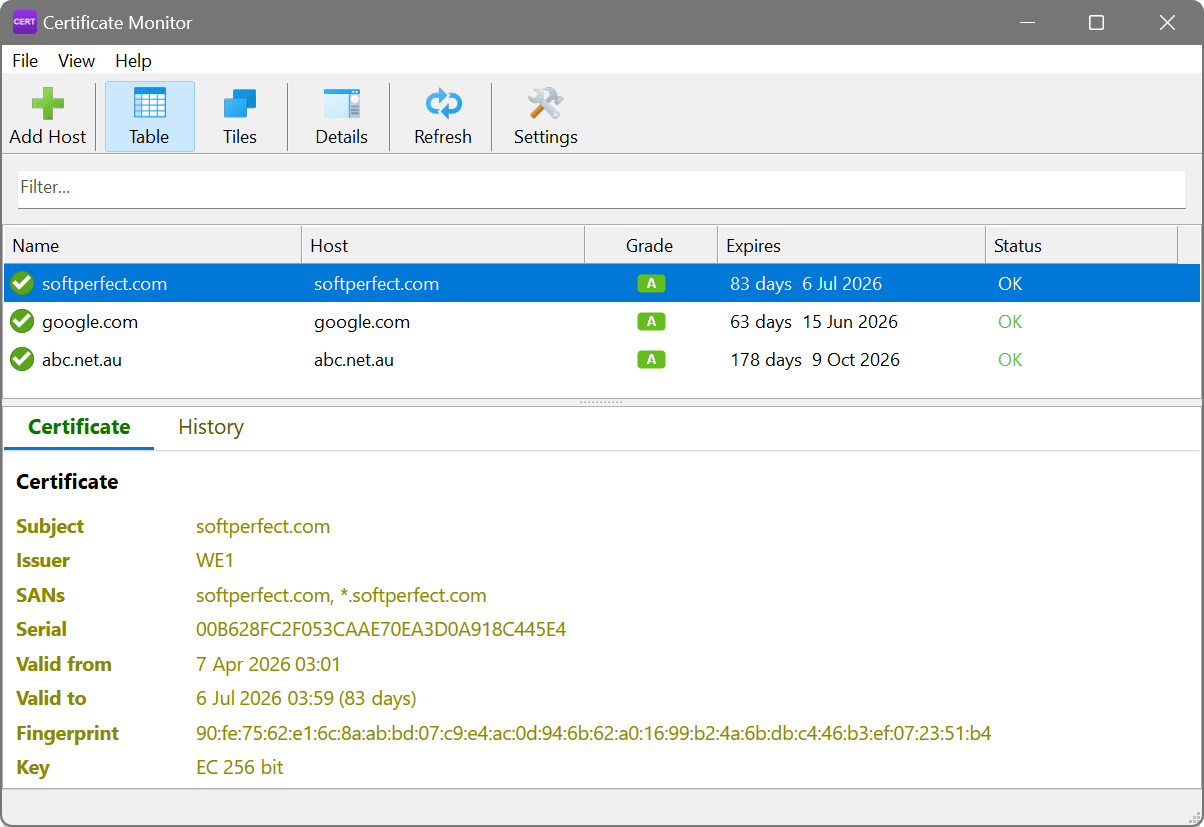
Table view
The table view shows one row per host, with these columns:
- Name: the display name or host address, with a status icon showing the current state.
- Host: the address being monitored.
- Grade: a letter from A (excellent) to F (critical) summarising the overall certificate health.
- Expires: the number of days until the certificate expires, followed by the expiry date. The value is colour-coded as expiry draws near.
- Status: a short label showing the current state (OK, Expiring soon, Expired, Error, and so on).
Click a column header to sort by that column – sorting by Grade is a quick way to bring anything that needs attention to the top. Use the filter box above the list to jump to a host by name or address.
Tile view
The tile view shows each host as a compact tile with its grade, name and expiry, colour-coded by status – a board you can take in at a glance. Switch between the table and tiles with the Table and Tiles buttons on the toolbar, and choose small, medium or large tiles in Settings.
Details panel
When a host is selected, the details panel below shows two tabs:
- Certificate: the certificate fields – Subject, Issuer, SANs (Subject Alternative Names), serial number, validity period, SHA-256 fingerprint and key type. When the host presents a full chain, every certificate in it is listed. For a certificate issued to a bare IP address, which carries no common name, the IP address is shown in place of the name.
- History: a log of past checks, including certificate renewals (spotted by a change of serial number) and status transitions, so you can see when a certificate was last replaced.
Show or hide the panel with the Details button on the toolbar.
Grades
Each host is given a letter grade summarising its certificate health:
- A: Excellent. The certificate is valid, trusted, comfortably within its validity period and uses a strong key.
- B: Good, with a minor issue – for instance the certificate is starting to approach the end of its validity.
- C: Acceptable, but worth a look. The certificate may be nearing expiry or using a weaker key or signature.
- D: Poor. A significant problem, such as an untrusted chain or very little validity remaining.
- F: Critical. The certificate has expired or does not match the host, the host is unreachable, or the TLS connection cannot be established.
How “expiring soon” is judged. Rather than counting down from a fixed number of days, Certificate Monitor scales its expiry warnings to each certificate’s own lifetime. A conventional year-long or 90-day certificate is flagged in roughly its final month, exactly as you would expect. A short-lived certificate – such as a Let’s Encrypt six-day certificate for an IP address – is only flagged in its final day or so, close to when its automatic renewal is due. That way a healthy certificate designed to be replaced every few days still earns an A and is not perpetually marked as expiring.
Common scenarios
You look after a handful of public websites, and the last thing you want is an outage because a certificate quietly lapsed over a weekend. Add each site by its hostname, leave Certificate Monitor running, and let the grades keep watch. Healthy hosts sit at a green A; as a certificate nears the end of its life its grade eases downward and a desktop notification speaks up while there is still plenty of time to renew. A glance at the list – or the alert – is all it takes.
Certificates are getting shorter, and Let’s Encrypt now issues six-day certificates for bare IP addresses. Point Certificate Monitor at the address – say 203.0.113.10 on port 443 – and it reads the certificate straight from the IP, showing the address where a name would normally go. Because the warnings scale to each certificate’s lifetime, that freshly issued six-day certificate still grades A and is only flagged in its final day, right when its automated renewal is due, instead of being marked as expiring the moment you add it.
Inherited a stack of servers and not sure which certificates are a problem? Add them all, switch to the Table view and sort by Grade, and the weakest configurations float to the top. An untrusted chain, an outdated TLS version, a certificate that does not match its host, or one about to lapse each pulls the grade down – so a single sorted column shows you exactly where to spend your afternoon. Open the details panel on any host to see the full chain and the reasons behind its grade.
Settings
Open the settings dialogue with the Settings button on the toolbar. Settings are arranged on three tabs.
General
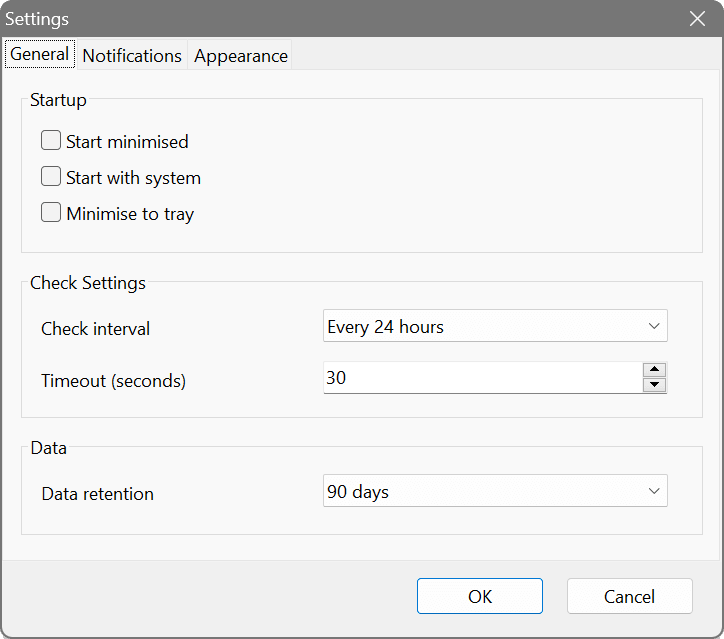
- Start minimised
- Launch the application minimised to the taskbar or dock.
- Start with system
- Automatically start Certificate Monitor when you log in.
- Minimise to tray
- When minimised, hide to the system tray instead of staying on the taskbar.
- Check interval
- How often to recheck all certificates. The default is every 24 hours, which suits certificates that live for weeks or months.
- Timeout
- The maximum time, in seconds, to wait for a TLS connection to a host.
- Data retention
- How long to keep check history in the database. Older entries are removed automatically.
Notifications
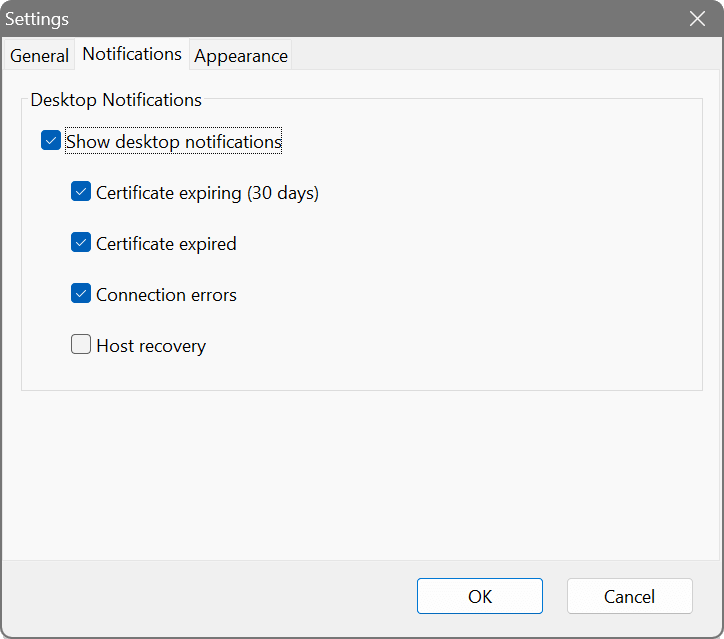
- Show desktop notifications
- Turn all desktop notifications on or off. When on, choose which events you want to hear about:
- Certificate expiring soon: a certificate is approaching the end of its validity. The warning is timed to the certificate’s lifetime, so you are alerted in good time whether it lives for a year or just a few days.
- Certificate expired: a certificate has already lapsed.
- Connection errors: the host could not be reached, or the TLS handshake failed.
- Host recovery: a host that previously had errors is responding normally again.
Appearance
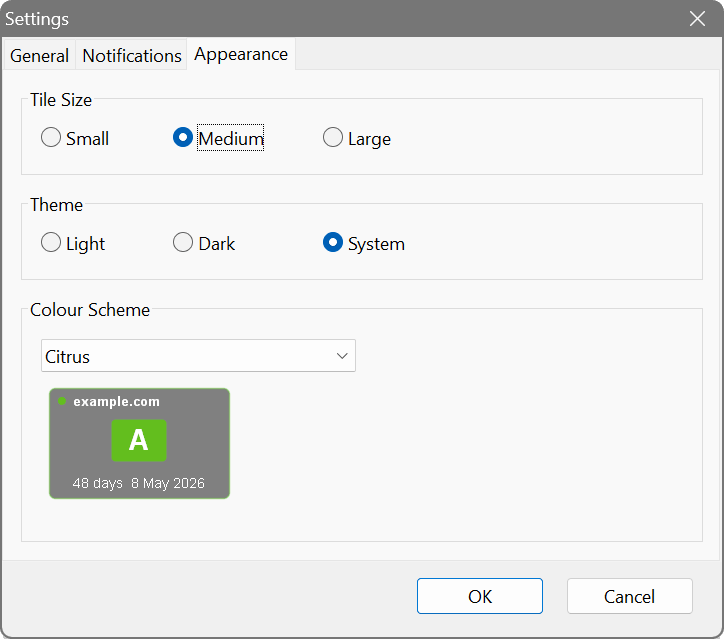
- Tile size
- Choose small, medium or large tiles for the tile view.
- Theme
- Select Light, Dark or System to follow your operating system’s theme.
- Colour scheme
- Pick a colour palette for the tile view. A preview tile below the drop-down shows how it looks.
End User Licence Agreement (EULA)
This software and the included documentation is copyright SoftPerfect Pty Ltd, Australia. All rights are reserved. The software may be used, installed or copied only in accordance with the terms of the licence described in the following paragraphs.
GRANT OF LICENCE
This software is FREEWARE. Permission is hereby granted to anyone to install, use, copy, publish, and distribute copies of this software free of charge, provided that the original software is not modified in any way.
MODIFICATIONS
Unauthorised modification, decompilation or reverse engineering of the software or any subset of the software without written permission from the copyright holder is strictly prohibited.
USE
This software is distributed “as is”. No warranty of any kind is expressed or implied. You use it at your own risk. In no event shall SoftPerfect or its agents be liable for any loss or inaccuracy of data, loss or interruption of use, or cost of procuring substitute technology, goods or services, or any other loss or damages. If, despite the foregoing, SoftPerfect is found liable for any damages, its total cumulative liability shall not exceed AUD 1 (one Australian dollar).
You may not use this software in connection with any illegal, fraudulent, infringing, harmful or offensive activity.
TERMS OF ACCEPTANCE
Installation or use of this software signifies your acceptance of the terms and conditions of the licence. If you do not agree with them, you must stop using and remove the software from your devices. SoftPerfect reserves all rights not expressly granted here. SoftPerfect also reserves the right to terminate this licence immediately if you fail to comply with these terms. Upon termination, you must cease all use of the software and uninstall it from your devices.
GOVERNING LAW AND JURISDICTION
This EULA shall be governed by and construed in accordance with the laws of the State of Queensland, Australia, without regard to its conflict of law principles. The parties agree that the courts of Queensland, Australia, shall have the exclusive jurisdiction to resolve any dispute arising from or in connection with this EULA.