How to compact a VirtualBox VDI file
A dynamically allocated VDI grows as the virtual machine writes to it and does not get smaller when files are deleted in the guest. To reduce its size on the host, the image has to be compacted. This guide shows VirtualBox’s own way and a simpler one with Virtual Disk Trim.
The built-in way: VBoxManage
VirtualBox removes only the blocks that are filled with zeros, so the free space has to be zeroed inside the guest first.
In a Windows guest, with SDelete from Sysinternals:
In a Linux guest with ext2, ext3 or ext4, boot into recovery mode, remount the file system read-only and run zerofree on its device:
Then shut the VM down and compact on the host:
When the file does not shrink
- The free space was not zeroed. Compacting alone releases almost nothing, because deleted files still look like data.
- The disk is a VMDK. VirtualBox compacts VDI and dynamic VHD images only.
- The disk is fixed-size. It always takes its full size.
- The host is short of space. Zeroing makes the image grow towards its full size before it can shrink.
The simpler way: Virtual Disk Trim
Virtual Disk Trim reads the guest file system from the image file itself and rebuilds the image without the unused blocks. The VM stays off, nothing is zeroed, and VirtualBox does not have to be installed.
- Shut the virtual machine down.
- Add the VDI, or the folder with all your images. The Savings column shows what each would give back; this part is free.
- Press Trim. The trimmed image is verified against the original before it replaces it.
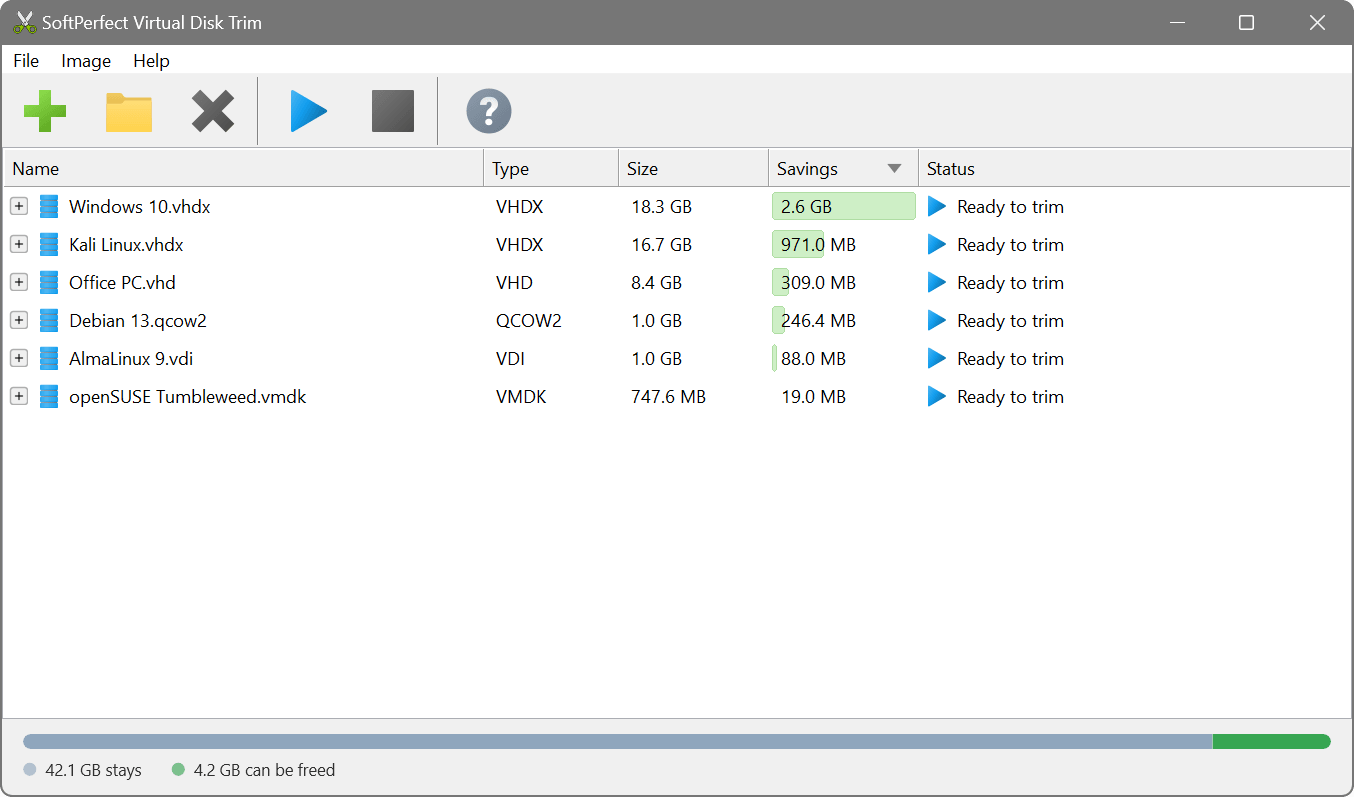
Or from the command line:
Which to use
VBoxManage works and costs nothing, but it needs the guest running for the zeroing, takes long, wears the SSD and needs spare room on the host. Virtual Disk Trim is the better tool when:
- you would rather not start the VM or boot it into recovery mode, or the guest uses XFS or btrfs, which zerofree does not handle;
- the host has no room for the image to swell first;
- the disk is a VMDK, which VirtualBox will not compact;
- the disk is fixed-size: it comes out dynamic and without its empty space;
- you want page, swap and hibernation files left out as well.
The trimmed disk keeps its UUID, so VirtualBox recognises it as the same disk. Delete snapshots first: a snapshot disk is declined, but the base disk under it is not recognised as one and must be left alone.
Moving to another hypervisor? The command line tool trims and converts in one pass; the name of the output decides the format:
Shrink, compact or compress?
VirtualBox calls this operation compacting, and shrinking or reducing a VDI usually means the same thing: dropping the blocks the guest no longer uses. Compressing is different. It packs the data itself, as file compression on the host does, which saves space at some cost in speed. Reducing the capacity the guest sees is a third thing: the partition has to be shrunk inside the guest first.