SoftPerfect WiFi Guard
Online User Manual
Introduction
SoftPerfect WiFi Guard is an essential tool for everyone running a small WiFi network and striving to keep it secure. Generally, modern WiFi networks are well protected, but there are a number of weaknesses that can compromise your WiFi password; this includes vulnerabilities in encryption and brute force attacks. As a result, someone can gain unauthorised access to your Internet and home or office network, exploit them and stay unnoticed.
You may think: “Who cares! I’ve got an unlimited data plan.” But what if someone is reading your personal emails, stealing private information or breaking the law online while using your Internet connection?
Here comes our little app that can alert you whenever your network may be used without your knowledge. WiFi Guard is a specialised monitoring application that runs through your network at set intervals and reports immediately if it has found any new connected devices that could possibly belong to an intruder.
Getting started
If you have not already done so, download a copy of WiFi Guard. Upon its first launch, you will see either the main window, or this configuration dialog if WiFi Guard needs some additional information:

You can leave most settings unchanged, however you must choose your WiFi adapter from the list to let the application know which network it should scan.
The Simultaneous scans setting defines the number of devices scanned in parallel. A higher number will achieve a faster scanning but will use more computer resources, and vice versa. Normally there is no need to adjust this setting.
The Rescan interval (minutes) setting determines how often WiFi Guard should automatically repeat the scan. If you prefer to scan your network only manually, set this number to zero.
You can access and change all these settings at any time later by clicking the Settings button on WiFi Guard’s main application window.
If you have only one adapter, the configuration dialog will not be displayed. Instead you will be presented with the main application window:

The columns display IP and MAC addresses of the detected devices, ping time that shows how long it took the device to respond, automatically detected device names, comments that were added for each device, when each device was first seen, and the device vendors or hardware manufacturers. The line at the bottom shows how many devices are known and unknown, when the next scan is due and which adapter is in use.
Here you can click the Scan Now button, open the Settings, check the Properties of the selected device, or open the Device Catalog of every device ever detected.
If the Scan Now button is disabled, it means that either your network connection is inactive, or an incorrect adapter has been selected. In this case, click the Settings button and try selecting a different adapter from the list.
Scanning your network
Click Scan Now to detect all your network devices. This will scan your WiFi network and display what is there. It may take some time, depending on the size of your network.
Once the scanning process is finished, you will see a list of devices, including your computer, your router and possibly some other devices. Your computer and your router will be marked as “known” (green) straight away, because WiFi Guard already knows they are legitimate. The devices marked “unknown” (red) represent everything else: other computers, smart phones, TV, Xbox, etc. They are red because WiFi Guard doesn’t know yet whether they have your permission to connect to your network.

Automatic detection of new devices
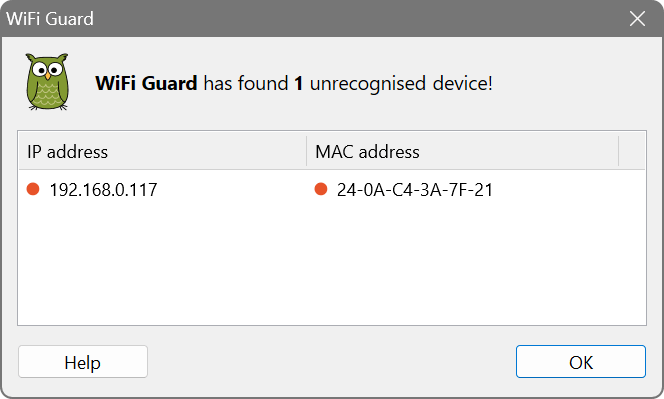
If the Instantly detect new devices joining the network setting on the Scanning page of Settings is enabled, WiFi Guard will automatically and immediately detect every new unknown device connecting to your network. When such a device is detected, you will see an alert message, and the device is scanned straight away and shown in the list in the main application window alongside your other devices.
Identifying your devices
WiFi Guard works by telling your own devices apart from anyone else’s. Once every device you own is marked as “known”, anything new that joins your network stands out straight away.
To mark a device as known, double-click it in the list (or select it and click Properties), tick I recognise this computer or device and click OK. You can also add a comment, such as “Living room TV”, and pick an icon for the kind of device it is:

Not sure what a device is? These usually help:
- Look at its name and vendor in the list. The vendor is the maker of the device’s network chip, so “Apple” usually means an iPhone, iPad or Mac, and a printer or TV maker’s name gives the device away.
- Think of everything at your place that uses the Internet: phones, tablets, laptops, TVs, games consoles, smart speakers, printers, cameras, smart plugs and light bulbs.
- Turn a device you suspect off, click Scan Now, and see which one disappears from the list.
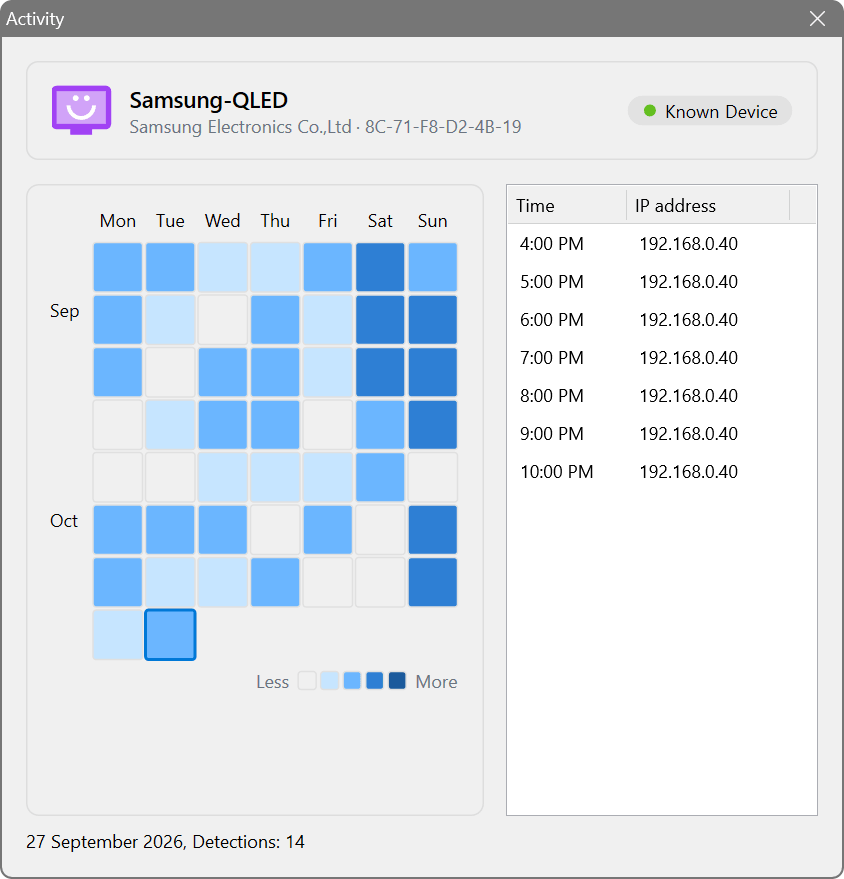
- Click Activity in the device’s properties to see on which days and at what times it has been on your network.
Phones and tablets often use a private, randomly generated address for each network, so the same phone can appear as a new device. If you would rather not be alerted about these, tick Automatically mark locally administered addresses as known on the Whitelisting page of Settings.
If a device remains a mystery, change your WiFi password on your router. Your own devices will need the new password, and anything that should not be there will be cut off.
Once you have identified all your devices, the list will look like this, with every device marked green:

From then on, keep WiFi Guard running: it can start with your computer and rescan your network every 30 minutes or so, and it will alert you whenever a device it does not recognise joins. When that happens, mark the device as known if it is yours, or change your WiFi password if it is not.
Still have questions? Check out the questions and answers or drop us a line.
End User Licence Agreement (EULA)
This software and the included documentation is copyright SoftPerfect Pty Ltd, Australia. All rights are reserved. The software may be used, installed or copied only in accordance with the terms of the licence described in the following paragraphs.
DISTRIBUTION TERMS
The evaluation version of the software may be freely distributed, provided that the original distribution package is not modified in any way.
EVALUATION VERSION
This is not free software. You are hereby licensed to use this software for evaluation purposes without charge. The evaluation version may be of a limited duration, or have some features limited or disabled. To use the software without these restrictions, you need to purchase a licence.
GRANT OF LICENCE
The software is licensed, not sold. Upon purchase of a licence, SoftPerfect grants you a non-exclusive, non-transferable right to use the software and all its features according to the terms of this EULA and the purchased licence type as described in the Licence Types section.
LICENCE TYPES
- Single Device Licence grants the purchaser, or agents of the purchaser, rights to install and use the software on one device only (e.g. computer, server, USB flash drive or virtual machine) at any given time. The licence can be reinstalled on the same device at any time, or deleted from one device and then moved to another. It can be used on any operating system compatible with the software. To install and use the software on more than one device simultaneously, you must purchase the corresponding number of single device licences or one of the special licences listed below.
- Multiple Licence Pack grants the purchaser, or agents of the purchaser, rights to simultaneously install and use the software on up to as many devices as is stipulated by the quantity in the pack. For example, the “Up to 10 Devices” pack allows installing and using the software on up to ten devices at the same time. Each device licence within the pack is identical to a single device licence. The licence pack can be used across multiple devices running different operating systems compatible with the software.
- Site Licence grants an organisation, or agents of an organisation, rights to install and use the software on an unlimited number of devices within one organisation site, including any cloud-based installation and use performed from that site. An organisation site is defined as a location, or group of locations, used by the organisation that are all within 100 miles (160 kilometres) of each other.
- Worldwide Licence grants an organisation, or agents of an organisation, rights to install and use the software on an unlimited number of devices at an unlimited number of locations used by the organisation, including any cloud-based installations and use performed from those locations. If not listed, please contact us for the worldwide licence price.
- OEM Licence grants an organisation, or agents of an organisation, rights to use and distribute the software with their own hardware or software products. These products must provide substantial additional functionality to this software beyond mere rebranding, and not include any potentially unwanted programs.
Where applicable, additional licence subtypes include:
- Home Licence grants a private individual rights to install and use the software at home, that is in a place of residence, for domestic purposes with no intention to generate income.
- Business Licence grants an organisation (a company, corporation, firm, enterprise or institution, or part thereof) or a person rights to install and use the software in a commercial and non-commercial environment for the purposes of or in connection with running a business, supplying products or services to other organisations or individuals, or generating income.
DISTRIBUTION OF LICENCE KEYS
Except for the specific purposes described in the Grant of Licence and the Licence Types sections, licence keys issued by SoftPerfect may not be distributed by any person, organisation or their agents without written permission from the copyright holder.
MODIFICATIONS
Unauthorised modification, decompilation or reverse engineering of the software or any subset of the software without written permission from the copyright holder is strictly prohibited.
USE
This software is distributed “as is”. No warranty of any kind is expressed or implied. You use it at your own risk. In no event shall SoftPerfect or its agents be liable for any loss or inaccuracy of data, loss or interruption of use, or cost of procuring substitute technology, goods or services, or any other loss or damages. If, despite the foregoing, SoftPerfect is found liable for any damages, its total cumulative liability shall not exceed the amount paid by you for the software licence.
You may not use this software in connection with any illegal, fraudulent, infringing, harmful or offensive activity.
TERMS OF ACCEPTANCE
Installation or use of this software signifies your acceptance of the terms and conditions of the licence. If you do not agree with them, you must stop using and remove the software from your devices. SoftPerfect reserves all rights not expressly granted here. SoftPerfect also reserves the right to terminate this licence immediately if you fail to comply with these terms. Upon termination, you must cease all use of the software and uninstall it from your devices.
GOVERNING LAW AND JURISDICTION
This EULA shall be governed by and construed in accordance with the laws of the State of Queensland, Australia, without regard to its conflict of law principles. The parties agree that the courts of Queensland, Australia, shall have the exclusive jurisdiction to resolve any dispute arising from or in connection with this EULA.