Adding a volume
Use the Add button on the toolbar to open the Add Volume dialog:
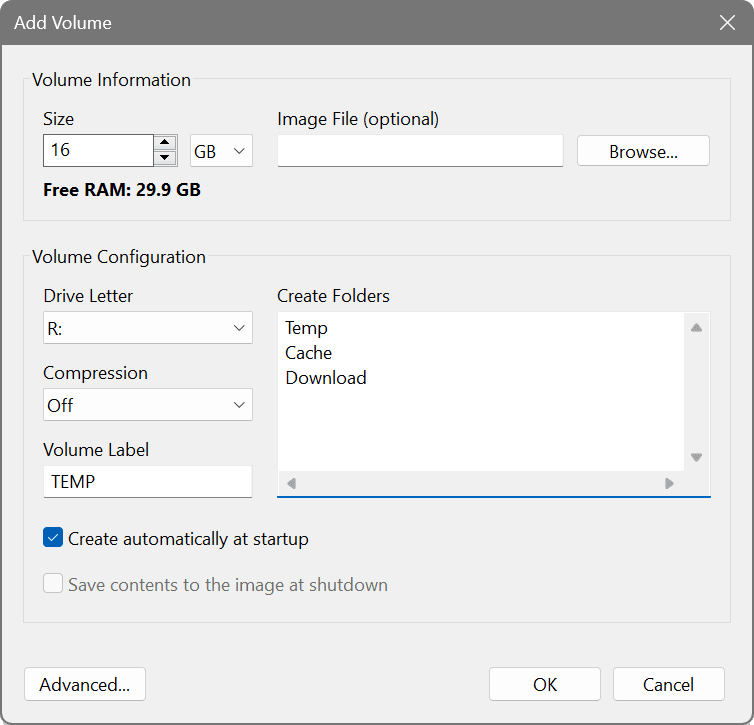
Add Volume dialog: here you can set the size, drive letter, and automatically-created folders
Options
- Size. The volume is thin and consumes memory only as it fills, so the nominal size doesn't take up that space until it is really used. However, you should always leave some room for the OS and other processes in case the volume gets filled. For your convenience, the dialog shows free RAM currently available on your computer.
- Drive letter and label. The mount point and the volume name that will be shown in Windows Explorer. On macOS there is no drive letter: the volume is identified by its name and mounts under /Volumes.
- Compression. Can be set to Off, Fast, Normal, or Maximum. Enabling compression reduces the memory footprint of compressible data, but it comes at some CPU cost.
- Image file. If the specified Image File exists, its contents are loaded at volume mount; if not, the volume is bound to the set path for later saves.
- Source folder. The alternative to an image file. Set via clicking the Use a source folder instead link, the mirrored folder runs in memory at its own path, with changes written back to the disk. The dialog warns if the folder will not fit into the volume. A volume can use either an image file or a source folder, not both.
- Create folders. As the volume is empty on every mount, you can specify the folders that should be automatically created at mount, for example Temp and Cache. This is useful for the applications that expect their directories to exist from the start.
- Create automatically at startup. Recreates the volume at boot without the RAM FS application running.
- Save contents at shutdown. Saves the volume at shutdown and dismount to its image file or its mirrored source folder. With this option off, a mirrored folder becomes in effect read-only: all its changes are discarded on dismount.
Advanced...
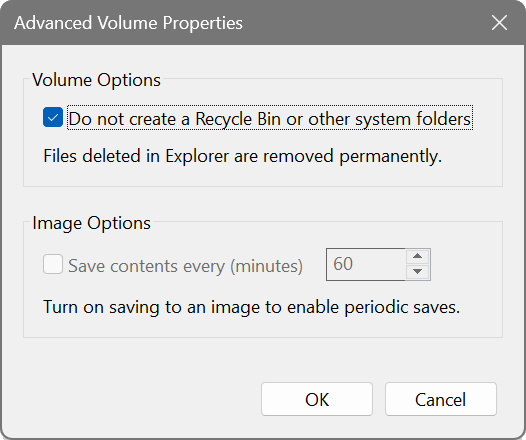
Advanced Volume Properties: volume options and periodic save
- Do not create a Recycle Bin or other system folders. Deletions in Windows Explorer are permanent rather than moved to a Recycle Bin. Recommended for scratch and temporary volumes.
- Wipe memory before releasing it to the system. Memory freed by the volume is overwritten with zeroes, and the whole volume is wiped at dismount, so deleted files leave nothing behind in the Windows kernel. It is off by default for performance reasons, although the cost of enabling it is minimal.
- Mount as a removable drive. The volume presents itself as removable media instead of a fixed disk. Worth trying when other software handles the volume oddly. Windows Backup, for example, skips removable drives rather than stopping at a volume it cannot make sense of.
- Save contents every N minutes. Periodic saving to the bound image file or mirrored folder. Requires the Save contents at shutdown option to be enabled first.
Flags
The settings configured on a volume are shown as letters in the Flags column of the main window:
- P – Persistent: contents are saved at shutdown and dismount.
- PP – Persistent with Periodic save: as above, plus saving every N minutes.
- C – Compressed.
- R – Removable: mounted as removable media.
- N – No Recycle Bin or other system folders.
- W – Wipe on free: memory is wiped before being released to the system.
- M – Manual mount: not mounted automatically at startup.