Subnet planning
The subnet planning features are part of the Calculator tab. Below the details panels and Binary Visualisation, you will find the Subnet Enumeration section and the Subnet Map, a visual, interactive bar chart for designing custom subnet layouts.
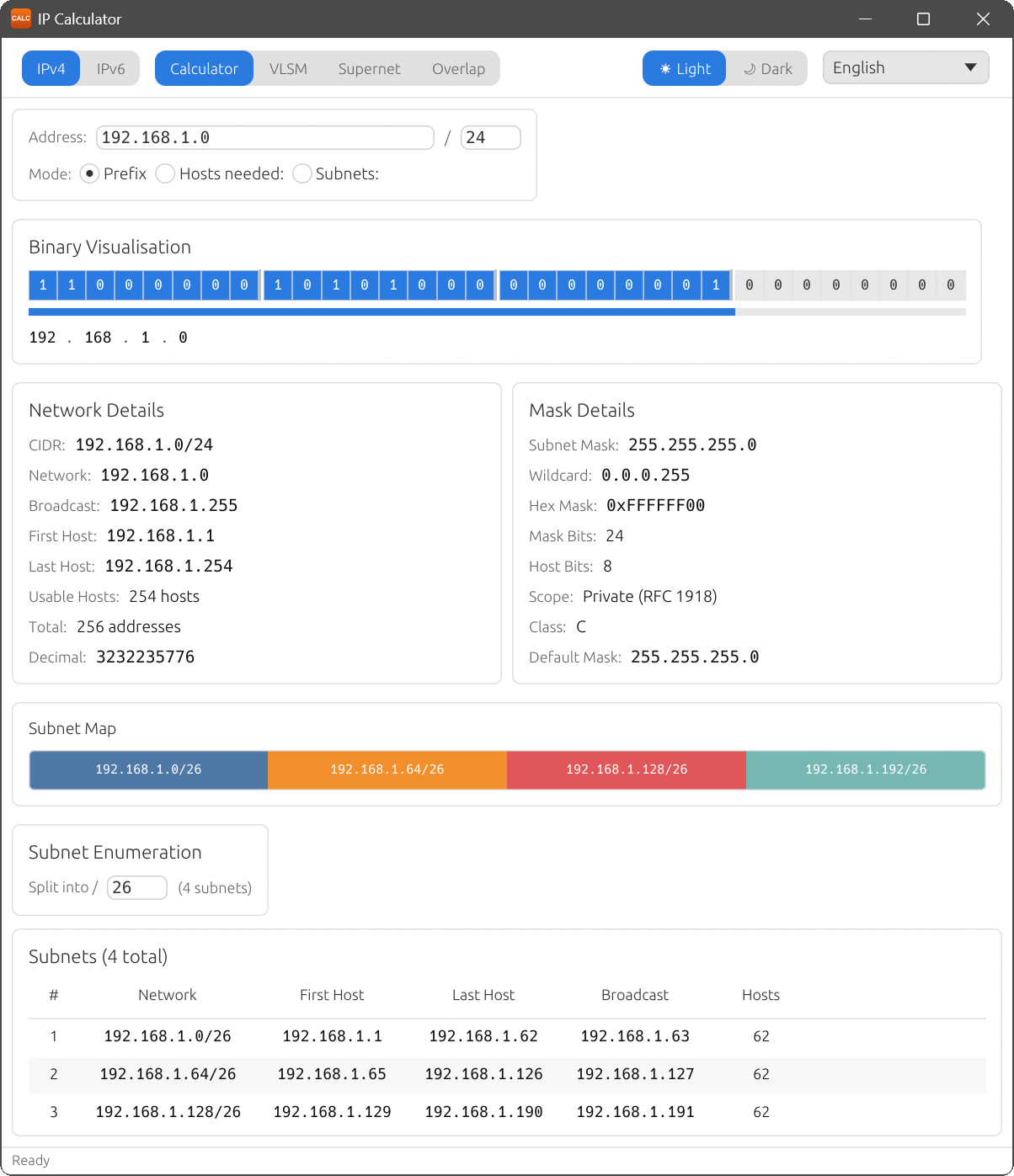
Subnet Enumeration
The Subnet Enumeration section lets you divide the current network into smaller, equal-sized subnets. Use the Split into / control to set the desired child prefix length. The heading shows the total count, e.g. Subnets (256 total).
The subnet table lists each subnet with the following columns:
| Column | Description |
|---|---|
| # | Sequential subnet number. |
| Network | The subnet’s network address in CIDR notation. |
| First Host | The first usable host address. |
| Last Host | The last usable host address. |
| Broadcast | The subnet’s broadcast address. |
| Hosts | The number of usable host addresses. |
Subnet Map
The Subnet Map is a proportional bar chart that visually represents how the address space is divided. Each segment corresponds to a subnet and is colour-coded. Free (unallocated) space appears with a hatched pattern. Click any segment to select the corresponding subnet in the table.
Splitting and joining subnets
Right-click on a subnet segment in the Subnet Map to access the context menu with the following options:
- Copy CIDR
- Copy the selected subnet’s CIDR notation to the clipboard.
- Split
- Divide the selected subnet into two equal halves by increasing its prefix length by one bit.
- Join with next
- Merge the selected subnet with the following subnet of the same size, creating a single subnet with one less prefix bit.
- Join with previous
- Merge the selected subnet with the preceding subnet of the same size.
By repeatedly splitting and joining subnets, you can create complex, non-uniform allocation layouts tailored to your specific requirements. For example, a large subnet for workstations alongside smaller subnets for servers and management networks.
All split and join operations support undo (Ctrl+Z) and redo (Ctrl+Y), so you can experiment freely and revert any changes.